


在 LaTeX 中插入圖片與影像
載入 graphicx,把圖片檔案加入你的專案,然後寫 \includegraphics[width=0.8\linewidth]{photo.png}。把它放進 figure 環境並加上 \caption{...} 和 \label{...},它就會有一個可以參照的編號。
把圖片加入專案
圖片必須先成為專案的一部分,文件才能顯示它。把檔案拖放到編輯器上,或使用「檔案」面板中的上傳(參見專案與檔案)。資料夾也沒問題:位於 figures/plot.png 的檔案,就用 \includegraphics{figures/plot.png} 引入。
附圖說的圖片
graphicx 套件的 \includegraphics 負責放置圖片。在 figure 環境中,圖片會有編號和圖說,而 \label 讓你可以用 \ref 參照它。
附圖說和參照的編號圖片
\begin{figure}[ht]
  \centering
  \includegraphics[width=0.6\linewidth]{figures-plot.png}
  \caption{Sales per week in the first five weeks.}
  \label{fig:sales}
\end{figure}

As Figure~\ref{fig:sales} shows, sales grew every week.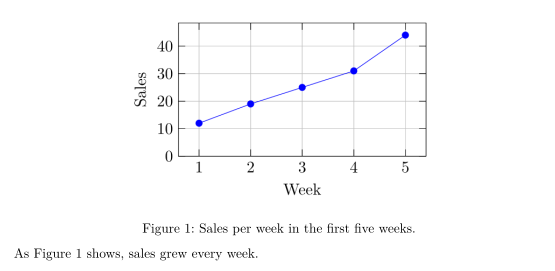
請把 \label 放在 \caption 之後,這樣標籤才會取得圖片的編號。位置字母 [ht] 以及圖片如何移動,請見浮動物件:放置圖片和表格。
圖片大小
在選用參數中指定寬度。相對寬度會配合頁面和欄位調整,所以是最安全的選擇。
| 選項 | 範例 | 在 Scissor LaTeX 中 |
|---|---|---|
width= | width=0.5\linewidth、width=\textwidth、width=6cm | 可以使用 |
height= | height=4cm | 被忽略 |
scale= | scale=0.5 | 被忽略 |
angle= | angle=90 | 被忽略 |
trim=、clip、keepaspectratio | 被忽略 |
同一張 SVG 圖片的兩種寬度
\begin{center}
  \includegraphics[width=4cm]{figures-diagram.svg}

  \includegraphics[width=0.8\linewidth]{figures-diagram.svg}
\end{center}圖片格式
| 格式 | 在 Scissor LaTeX 中 |
|---|---|
| PNG | 可以使用 |
| JPG / JPEG | 可以使用 |
| SVG | 可以使用 |
寫出副檔名時可以使用:\includegraphics{chart.pdf} | |
| EPS | 不支援:整份文件會因「unknown image format」而停止 |
如果你像許多文件那樣省略副檔名(\includegraphics{plot}),Scissor LaTeX 會依序尋找 plot.png、plot.jpg、plot.jpeg 和 plot.svg。PDF 只有在寫出副檔名時才會被找到。
寫出副檔名引入的 PDF 圖片
\begin{figure}[h]
  \centering
  \includegraphics[width=0.55\linewidth]{figures-chart.pdf}
  \caption{Visitors per day.}
\end{figure}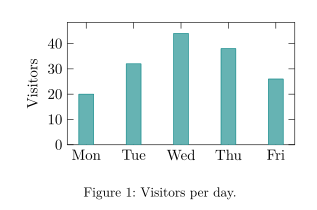
要使用 EPS 檔案,請先把它轉換成 PDF(或 SVG),例如用繪圖軟體轉換,再修改 \includegraphics 中的檔名。
缺少的圖片
如果專案中沒有該檔案,Scissor LaTeX 會在圖片應該出現的位置畫一個附有檔名的虛線框,「問題」分頁也會列出缺少的檔案。「檔案」面板會提供上傳它們的選項。
缺少的圖片會變成虛線框
\begin{figure}[h]
  \centering
  \includegraphics[width=0.6\linewidth]{figures/survey-map.png}
  \caption{Map of the survey area.}
\end{figure}
「問題」分頁: Images not in the project: figures/survey-map.png
\graphicspath{{figures/}} 會被忽略,所以請像上面的範例那樣,在每個 \includegraphics 中寫出資料夾。
圖說在上方或下方
對於含有圖片的 figure,不論你把 \caption 寫在哪裡,圖說永遠印在圖片下方。(表格的圖說則會出現在你寫的位置;參見表格。)
一個 figure 中放多張圖片
在 Scissor LaTeX 中,圖片永遠單獨排成一行。因此,同一個 figure 中的兩張圖片會上下堆疊,即使它們的寬度足以並排也一樣。
同一個 figure 中的兩張圖片會上下堆疊
\begin{figure}[h]
  \centering
  \includegraphics[width=0.4\linewidth]{figures-plot.png}
  \hfill
  \includegraphics[width=0.4\linewidth]{figures-chart.pdf}
  \caption{Sales per week (top) and visitors per day (bottom).}
\end{figure}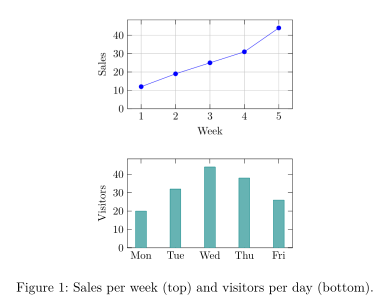
用 minipage 並排
在 TeX 安裝環境中,把兩張圖並排的常見做法,是在一個 figure 中放兩個 minipage 方塊,各自包含圖片和文字。Scissor LaTeX 會讀取 minipage,但不會保留它的寬度:每個方塊的內容都以完整寬度排版,一個方塊排在另一個下方。圖片和文字都會依正確順序出現,所以文件是完整的,只有版面不同。
兩個 minipage:在這裡上下堆疊,在 TeX 安裝環境中並排
\begin{figure}[h]
  \centering
  \begin{minipage}{0.45\linewidth}
    \centering
    \includegraphics[width=0.4\linewidth]{figures-plot.png}

    Sales per week
  \end{minipage}\hfill
  \begin{minipage}{0.45\linewidth}
    \centering
    \includegraphics[width=0.4\linewidth]{figures-chart.pdf}

    Visitors per day
  \end{minipage}
  \caption{Sales and visitors in week 44.}
\end{figure}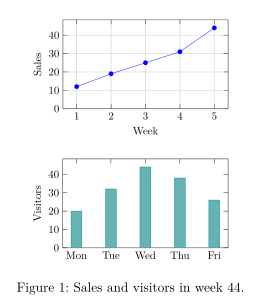
subcaption 的 subfigure 也是如此,而且還多一個問題:每個部分也會各自佔用一個 figure 編號(參見 caption 和 subcaption)。如果兩張圖在 PDF 中一定要相鄰,請在上傳之前把它們合併成一個圖片檔,或把兩者畫在同一個 TikZ 圖形或 pgfplots 群組中。
繪圖與圖表
圖表和示意圖不一定要是圖片檔:pgfplots 和 TikZ 程式碼會直接由排版器繪製。參見用 pgfplots 繪製圖表和用 TikZ 繪圖。
與 TeX 安裝環境的差異
更多細節請見 graphicx 頁面和 caption 與 subcaption 頁面。套件的完整使用手冊位於 ctan.org/pkg/graphicx。
常見問題
怎麼在 LaTeX 中插入圖片?
把檔案加入你的專案,載入 \usepackage{graphicx},然後在圖片應該出現的地方寫 \includegraphics[width=0.8\linewidth]{file.png}。
怎麼在 LaTeX 中改變圖片大小?
使用 width 選項,例如用 width=0.5\linewidth 設為文字寬度的一半。在 Scissor LaTeX 中,height 和 scale 會被忽略。
可以使用 SVG 或 PDF 圖片嗎?
可以。SVG 可以直接使用。PDF 則要在引入檔案時寫出 .pdf 副檔名。
本頁的每個範例都在建置網站時由 Scissor LaTeX 排版。 最後更新:2026-11-07