


文件結構
LaTeX 文件分成兩個部分。導言區從 \documentclass 到 \begin{document},負責設定文件;本文位於 \begin{document} 和 \end{document} 之間,包含要印出的內容。
框架
每份文件都以 \documentclass{...} 開頭,並且只有一個 document 環境。\end{document} 之後的任何內容都會被忽略。
\documentclass[11pt,a4paper]{article}   % the class and its options
\usepackage{amsmath}                    % packages
\title{...}                             % settings for the title
\begin{document}                        % the body starts
  ...
\end{document}                          % the body ends
文件類別
文件類別決定你撰寫的是哪一種文件,以及它的外觀。Scissor LaTeX 為每一類文件類別都提供了自己的版面。
| 你寫的是 | 排版成 | 備註 |
|---|---|---|
article、scrartcl 和其他類別 | article | 有章節,沒有章 |
report、scrreprt | report | 每一章從新的一頁開始 |
book、scrbook、memoir | book | 有章,以及前置和後置內容 |
letter、scrlttr2 | letter | |
beamer | article 文字 | 不會產生投影片;各個 frame 會變成一般文字 |
IEEEtran、acmart、llncs | 仿研討會格式的版面 | 參見仿研討會格式範本 |
方括號中的選項用來設定紙張和字型大小。會讀取的選項有:a4paper、a5paper、b5paper、letterpaper、legalpaper、executivepaper、10pt、11pt、12pt 和 twocolumn。其他選項會被接受但忽略。沒有指定紙張選項時,頁面是 US Letter,和 TeX 安裝環境一樣。更多說明請見文件類別和版面配置。
A5 紙張上的 12 pt 報告:章從自己的一頁開始
\documentclass[12pt,a5paper]{report}
\begin{document}
\chapter{Field work}
We spent 44 days by the river and counted
the birds every morning.
\end{document}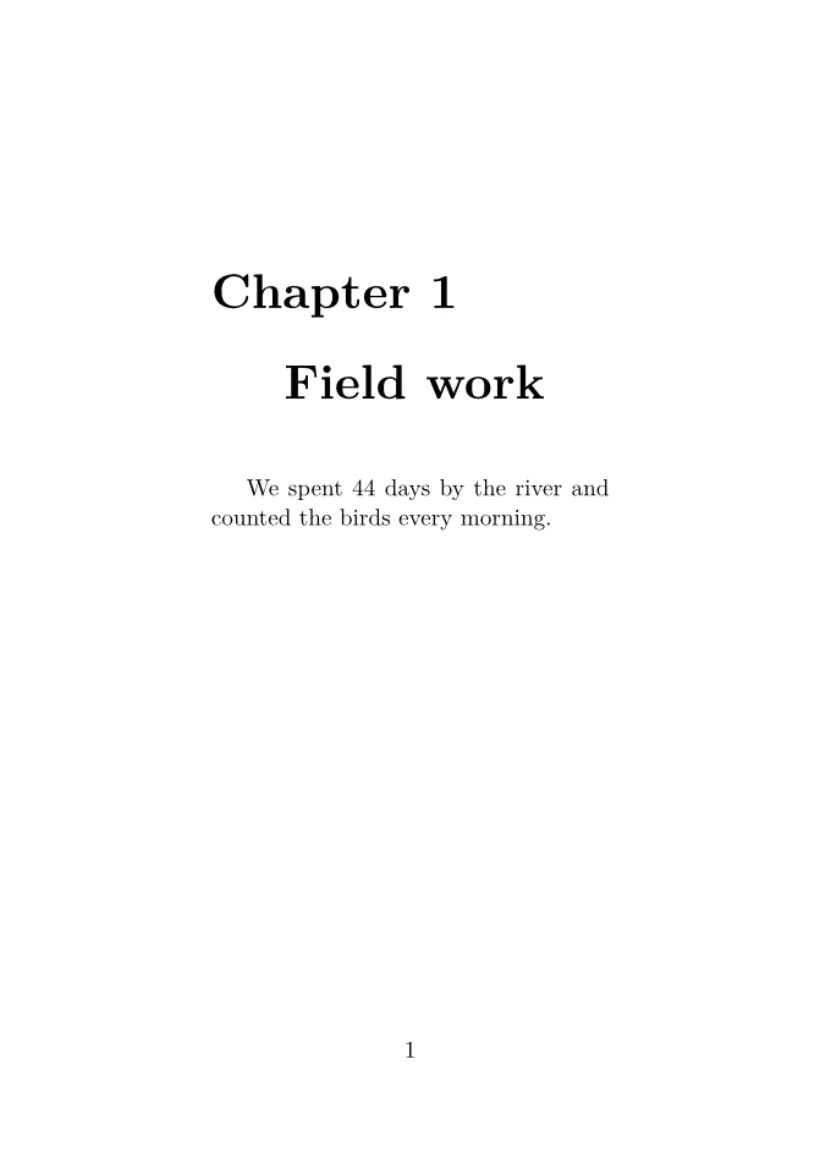
導言區
\documentclass 和 \begin{document} 之間的所有內容就是導言區。它不會印出任何東西,而是用來放置:
在 Scissor LaTeX 中,\usepackage 永遠不會讓文件停下來。套件不是從檔案載入的,而是直接理解常用套件的指令。編輯器不認識的套件會被忽略,並在「問題」分頁中說明;該套件的指令會被略過,但保留其中的文字。套件參考列出每個套件有哪些功能可以使用。
未知的套件會被回報,文件仍然照常排版
\documentclass{article}
\usepackage{amsmath}
\usepackage{fancyquotes}
\begin{document}
The document typesets without the package.
\end{document}
「問題」分頁: Package fancyquotes isn't supported in the preview, so its formatting is not applied. If it is your own package, add fancyquotes.sty to the project.
標題區塊
\title、\author 和 \date 儲存標題資訊,而 \maketitle 會在本文中你放置它的位置印出這些資訊,通常是在最開頭。多位作者之間用 \and 連接。
標題、作者和日期
\documentclass{article}
\title{Counting Birds by the River}
\author{Erika Mustermann \and Hans Mustermann}
\date{Spring 2026}
\begin{document}
\maketitle
\section{Introduction}
We counted birds every morning for 44 days.
\end{document}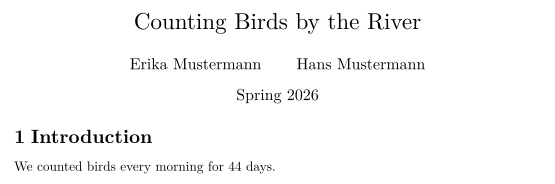
摘要
在 article 或 report 中,abstract 環境會在「Abstract」標題下印出一段簡短的摘要,排得比正文稍窄、稍小。請把它放在 \maketitle 之後。
標題之後的摘要
\documentclass{article}
\title{Counting Birds by the River}
\author{John Doe}
\date{}
\begin{document}
\maketitle
\begin{abstract}
We report daily bird counts from one river bank over
44 days. Most birds were seen in the first hour after
sunrise.
\end{abstract}
\section{Method}
Two observers counted for one hour each morning.
\end{document}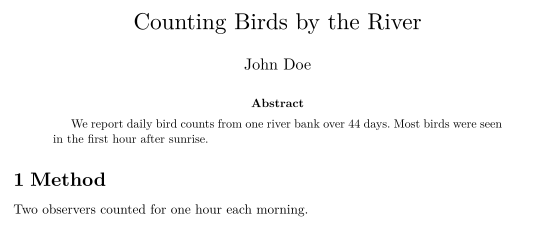
本文
本文包含你的文字,分成章節和段落,並搭配清單、數學式、表格和圖片。長篇文件可以拆成多個檔案;參見多檔案專案。
與 TeX 安裝環境的差異
常見問題
LaTeX 導言區要放什麼?
\documentclass 行、\usepackage 行、你的自訂指令,以及 \title 和 \author 等設定。導言區中的內容本身都不會印出來。
\maketitle 要放在哪裡?
放在本文中、\begin{document} 之後,也就是標題應該出現的位置:通常是第一行。
可以使用沒有列出的文件類別嗎?
可以。任何類別名稱都能用;Scissor LaTeX 不認識的類別會排版成 article。
本頁的每個範例都在建置網站時由 Scissor LaTeX 排版。 最後更新:2026-11-07